
Getting Started with UHC Doctor Chat
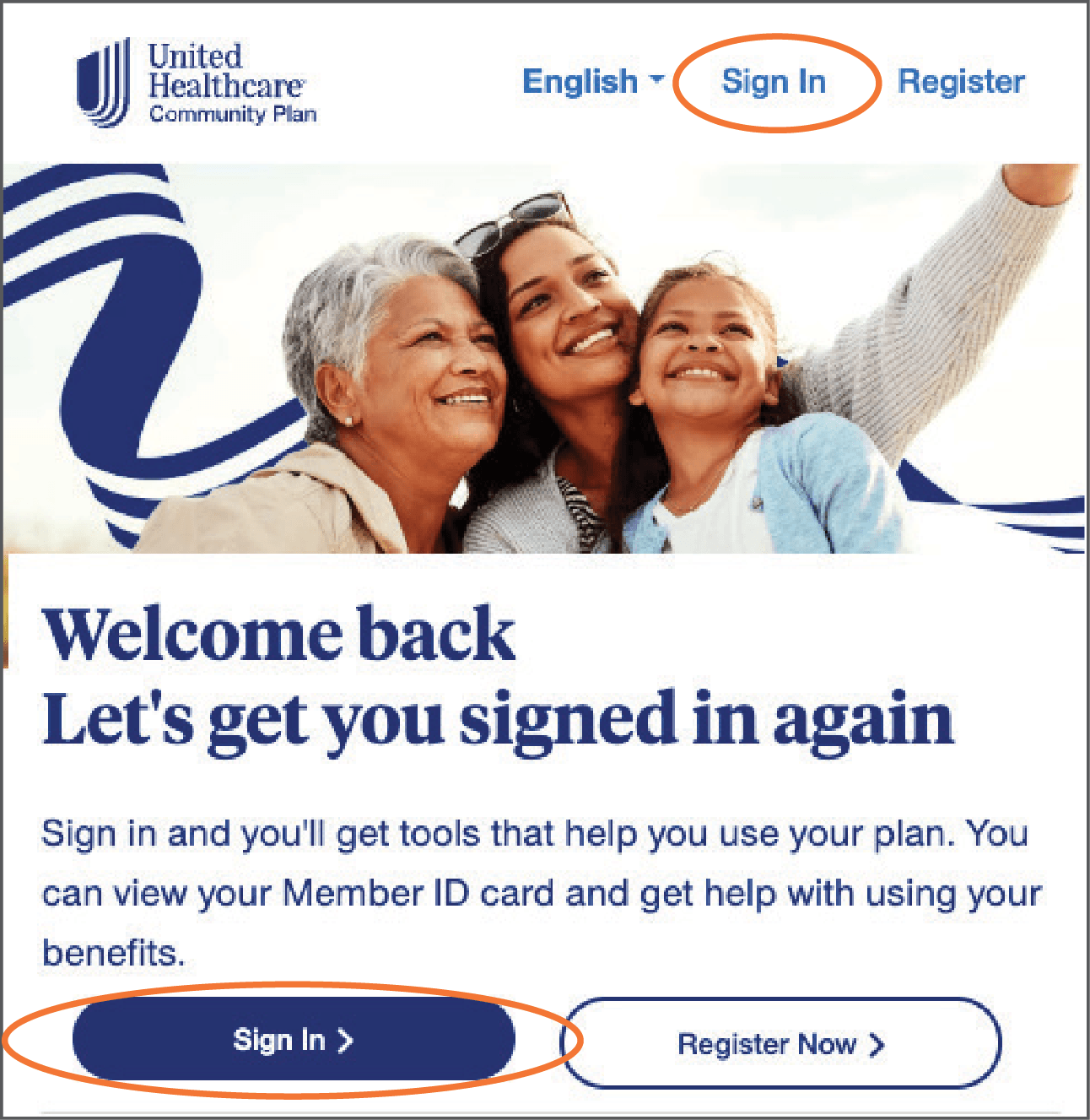
Signing in to the member website A helpful tool for managing your health care:
1. Go to member.uhc.com/communityplan and click the “Sign in” button or hyperlink in the top right. Or, if you haven’t already, click “Register Now.” The system will walk you through the registration steps.
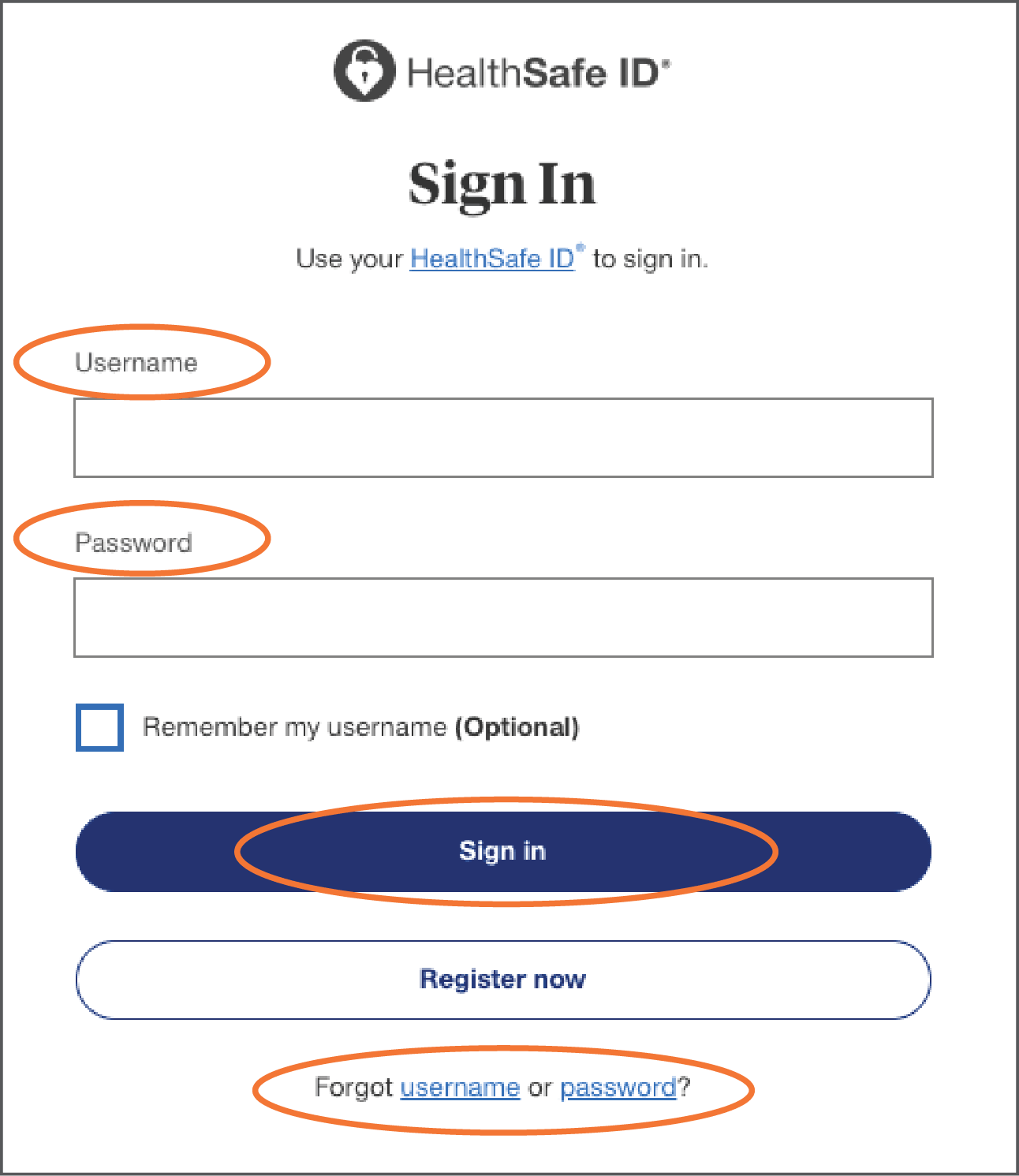
2. Enter your username and password. Use your HealthSafe ID®. To learn more about this, click on the HealthSafe ID link.
a. Can’t remember your username? Click “username” in the “Forgot username or password?” area.
b. Can’t remember your password? Click “password” in the “Forgot username or password?” area.
3. If you want to be remembered on the device, check the box “Remember my username (Optional).” Then click “Sign in.”
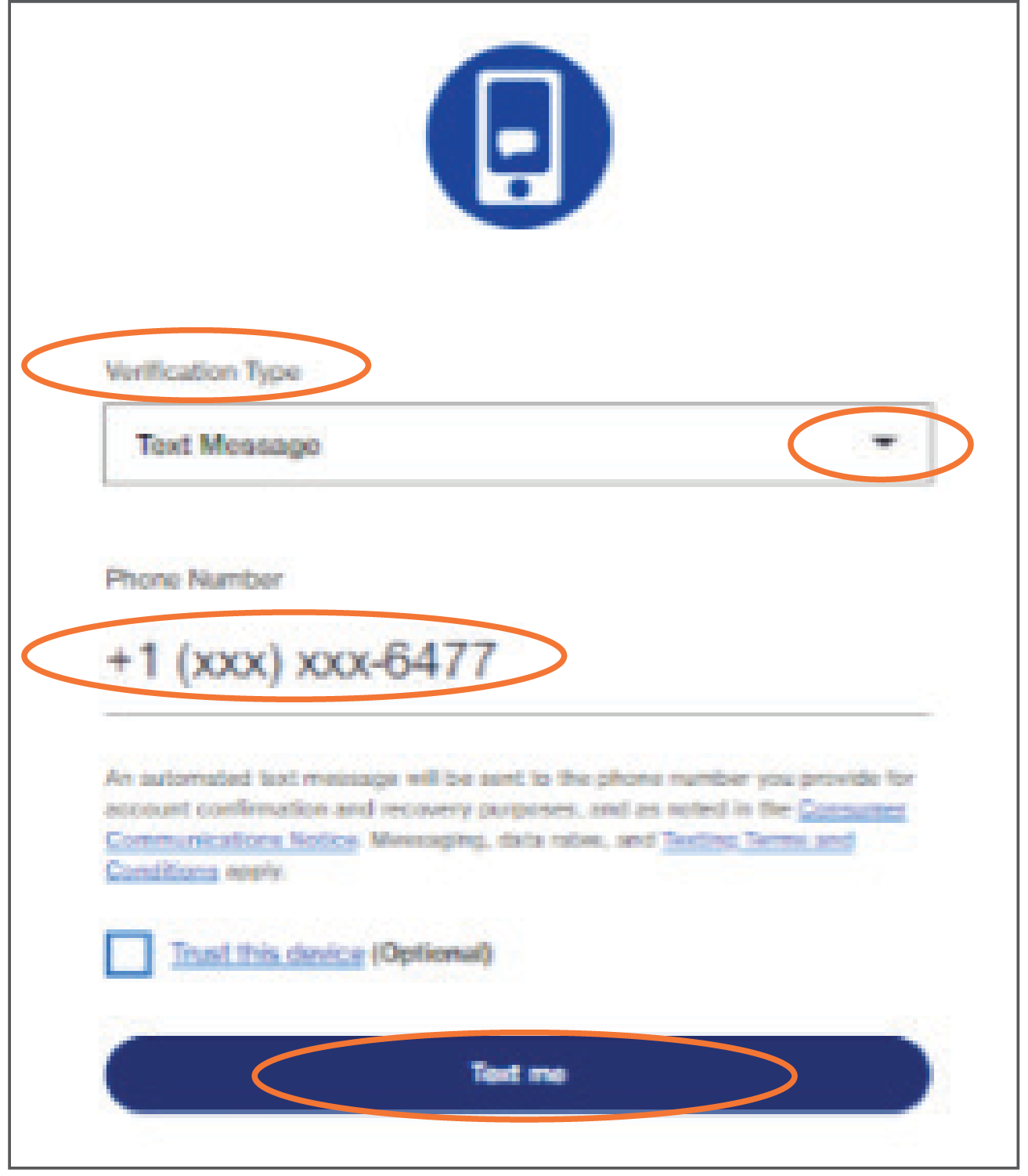
4. 2-step verification instructions — you will need your cell phone to get a code by text or phone call.
a. Select “Text Message” or “Phone Call” to choose how you want to get your verification code.
b. Check the “Trust this device” (Optional)” box if your device is not shared with others and you want to avoid this step on future logins.
c. Click “Text me” (or “Call me” if you selected the Phone Call option).
d. Once you get the time-sensitive Verification Code, enter the code and touch “Confirm”.
e. Once your verification is successfully confirmed, you will be taken to your myuhc.com dashboard.
Once signed in on the member portal, UHC Doctor Chat is accessible on the Dashboard Home page, Coverage & Benefits page, and Health & Wellness page, as well as the Virtual Care Page within the Find Care page.
You can also follow the above steps to create your account for the UHC mobile app. The same login credentials will be used to access both the app and the member portal. Once signed in on the mobile app, navigate to Virtual Urgent Care under the Find Care section to start your virtual visit.